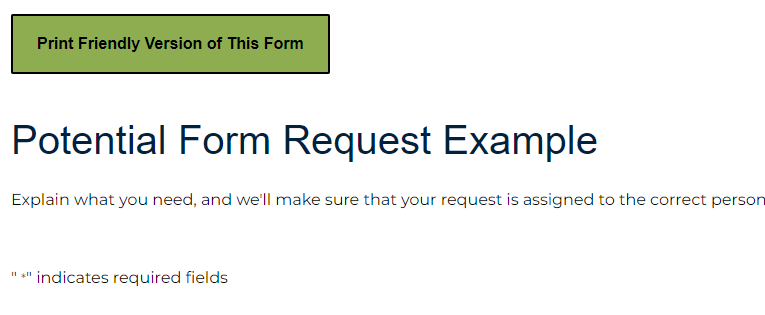
You created an online form for user convenience and ADA accessibility. Sometimes a website user prefers to print out the form. However due to the difficulty of creating ADA accessible forms, some clients are not offering an easily printable option. Below are instructions on how to create a new page with your form added AND nice for your website users to print. This new page will show your form, but take out the website navigation, header and footer, which can save a lot of space and printer ink.
Steps
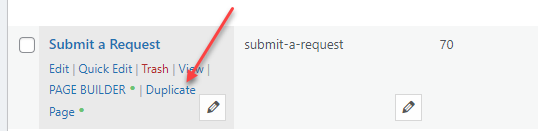
#1. Go to Backend Pages and Duplicate the page
#2. Edit the name of the page. We recommend you delete copy and add “pf” for print friendly. Very important to edit the Permalink too

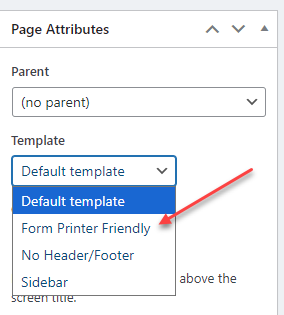
#3. Change Page Attributes > Template to “Form Printer Friendly”
#4. Publish
#5. Choose Launch Page Builder and edit page.
- Delete all content on the page except for the form.
- Add a new Heading H2 such as: To Print: right click (or Ctrl+P) and choose Print.
- Done > Publish
#6. View new page and copy URL link
#7. Go to original page and add a button whose link is the copied URL
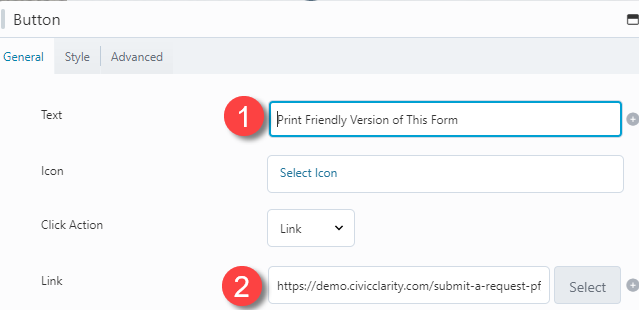
Here is the button on the website page